How to Start NINA and Start Imaging When Your PC Turns On
By Naztronomy • Posted on 9/30/2026 • Updated on 10/1/2026
The above is a more in-depth video on how to start NINA on startup!
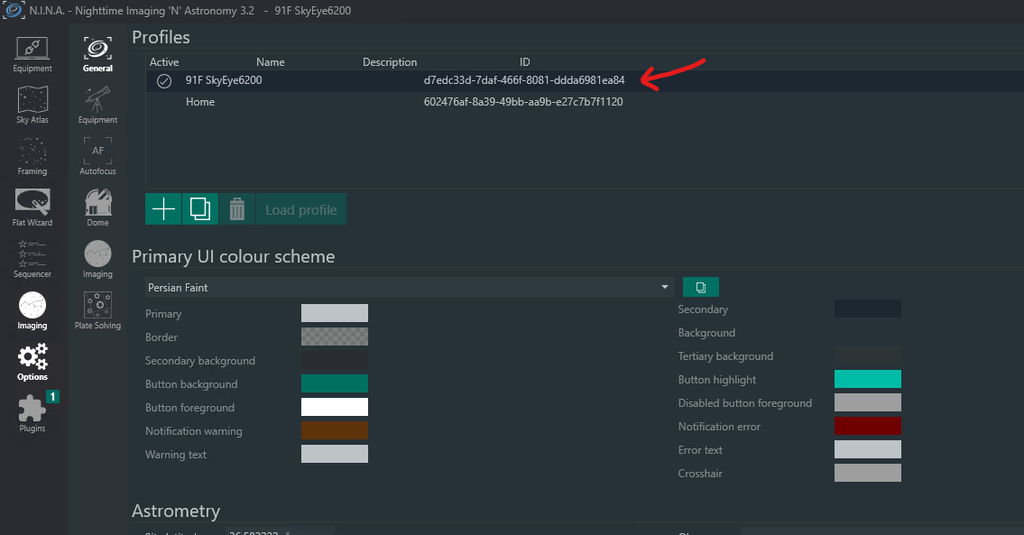
Before we get started with the scheduler, we need to collect some information. First start N.I.N.A. and go to Options followed by General if you are not already there.
Look at your profiles and find the profile you want to target. For example, mine is named 91F SKyEye6200. I want to grab that ID. I can either look at it and write it down, or find it in my path as follows.
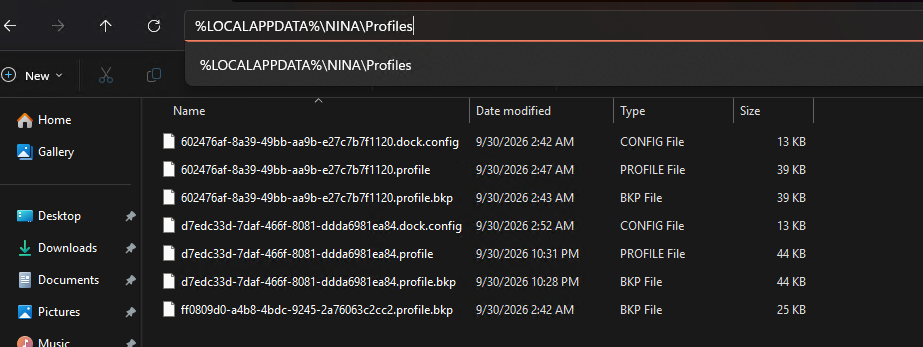
Open your file explorer and in your address bar type: %LOCALAPPDATA%\NINA\Profiles
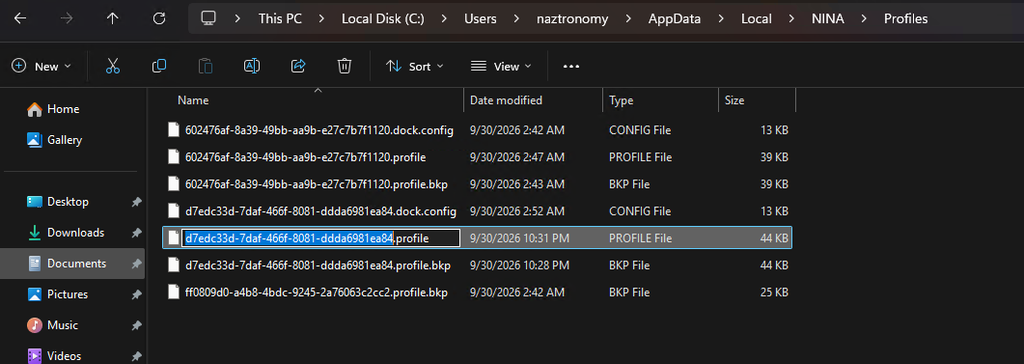
Once you hit enter, you should be taken to your local profile’s C: drive’s Local AppData location, straight into your NINA Profile’s folder. Now find t he profile ID that matches what you want ot target in NINA, for me it’s d7edc33d-7daf-466f-8081-ddda6981ea84.
You can try to rename it so that you can copy the file name, paste that in a notepad somewhere:
Next we’ll need our NINA sequencer file. This tutorial assumes you already have your sequencer saved somewhere. For me, it’s in my Documents >> N.I.N.A. directory. It has a list of my sequencers that end in .json. For me it’s an unsavory file named Naztronomy_Auto_Target_Scheduler_w_roof_switches_night_Summary_V2.json.
Right click on that file and click Copy As Path:
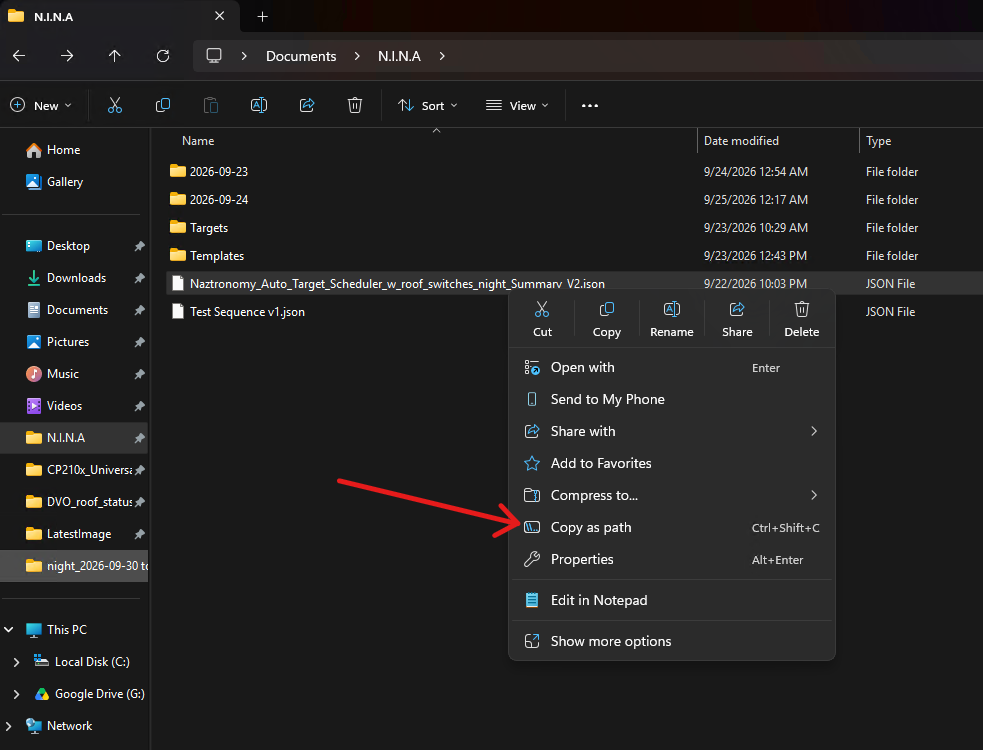
And save that in a Notepad. Mine looks like this: "C:\Users\naztronomy\Documents\N.I.N.A\Naztronomy_Auto_Target_Scheduler_w_roof_switches_night_Summary_V2.json"
Where ever you have both texts saved, add a profile and sequence flag and put it all on one line like this:-p d7edc33d-7daf-466f-8081-ddda6981ea84 -s "C:\Users\naztronomy\Documents\N.I.N.A\Naztronomy_Auto_Target_Scheduler_w_roof_switches_night_Summary_V2.json" -r

The -p tag says it’s a profile id and the -s says it’s a sequence file and the -r tells NINA to run the sequence.
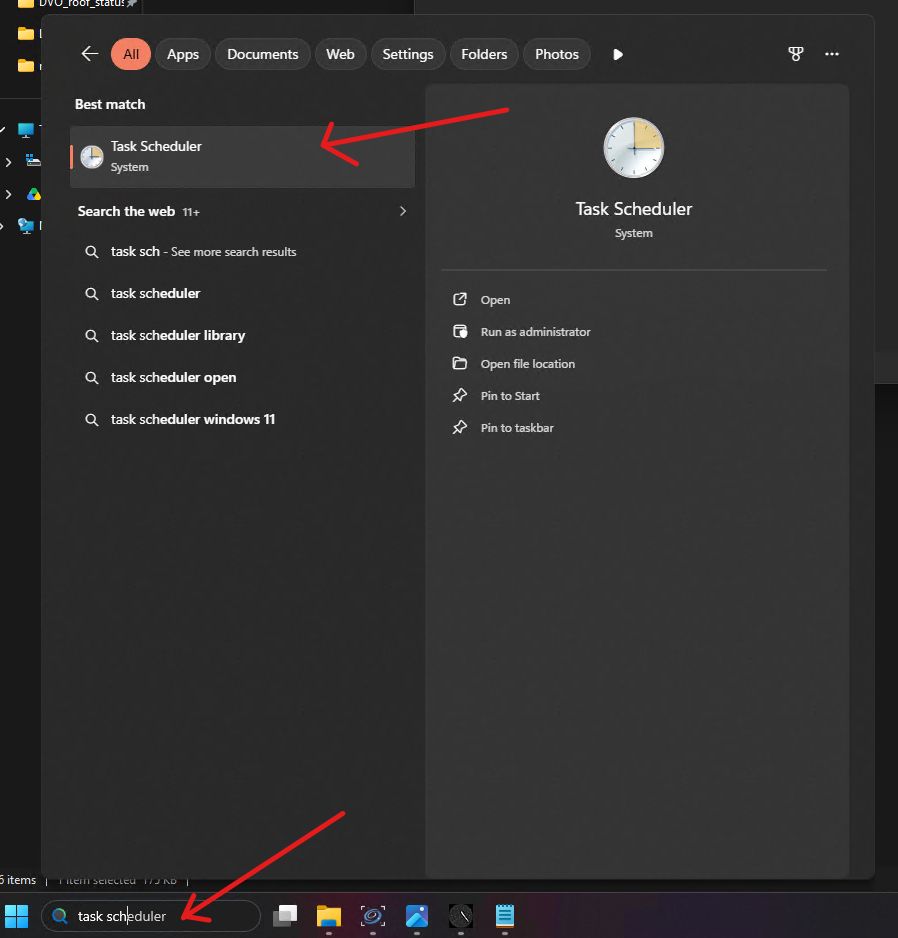
Now let’s schedule this thing. In the search bar at the bottom, search for Task Scheduler and run it:
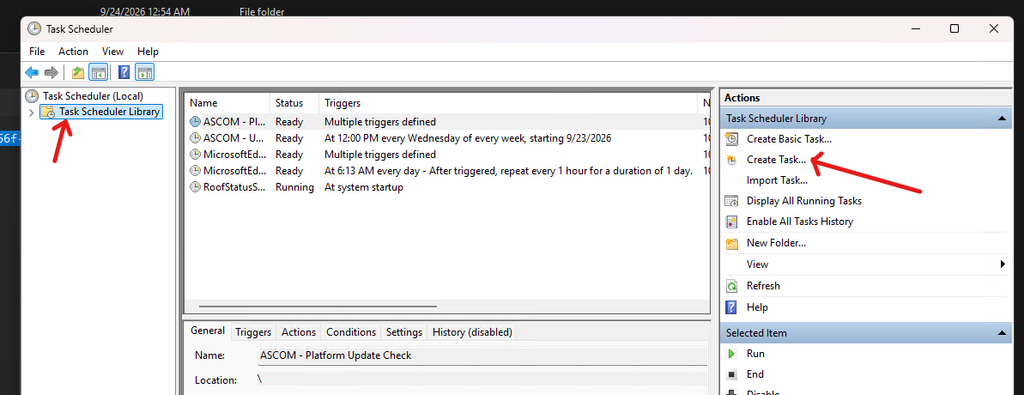
Click on Task Scheduler Library on the left and then Create Task on the right:
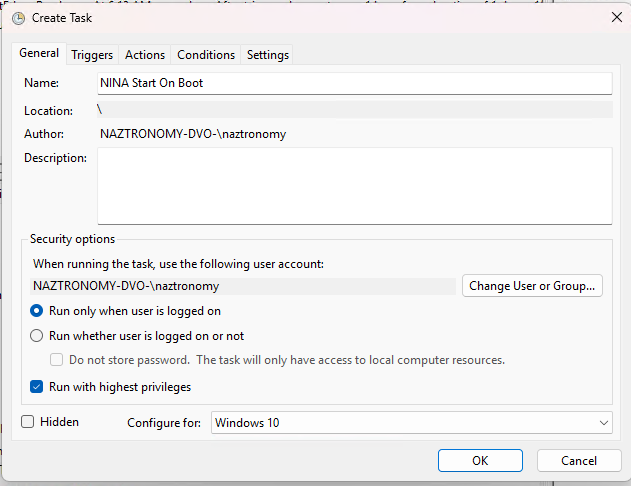
In the General tab, give it any name you wish. I picked NINA Start On Boot. In the security options below, you can leave it as default and this tutorial assumes that your computer will log you into your mini PC on boot (without a password). Check Run with highest privileges and then at the bottom, select Configure for Windows 10.
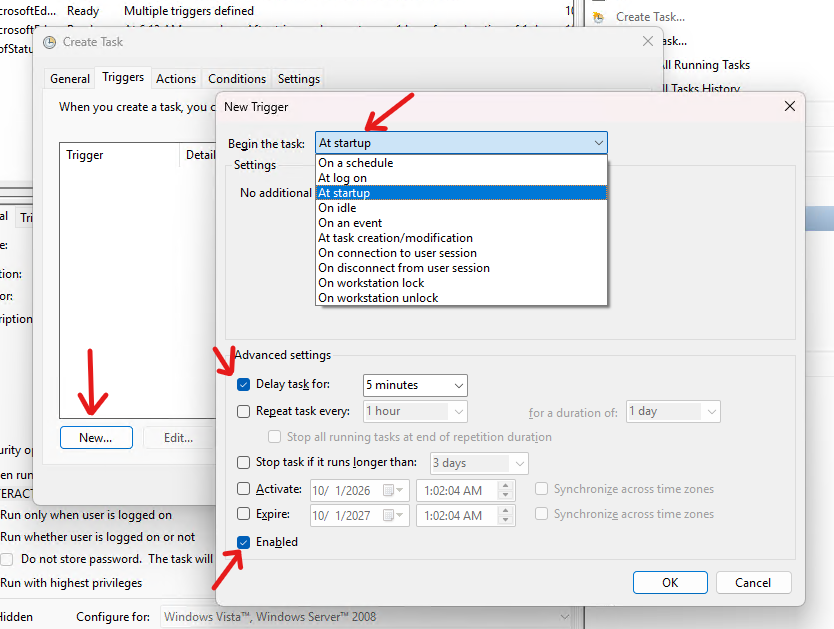
Then in the Triggers tab, click New at the bottom left, and set the Begin The Task to At Startup. In the Advanced settings, I recommend doing a delay of around 5 minutes to allow drivers and other software to start up at the beginning. Otherwise NINA may start too early. And of course at the very bottom, make sure you click Enabled. Then click OK.
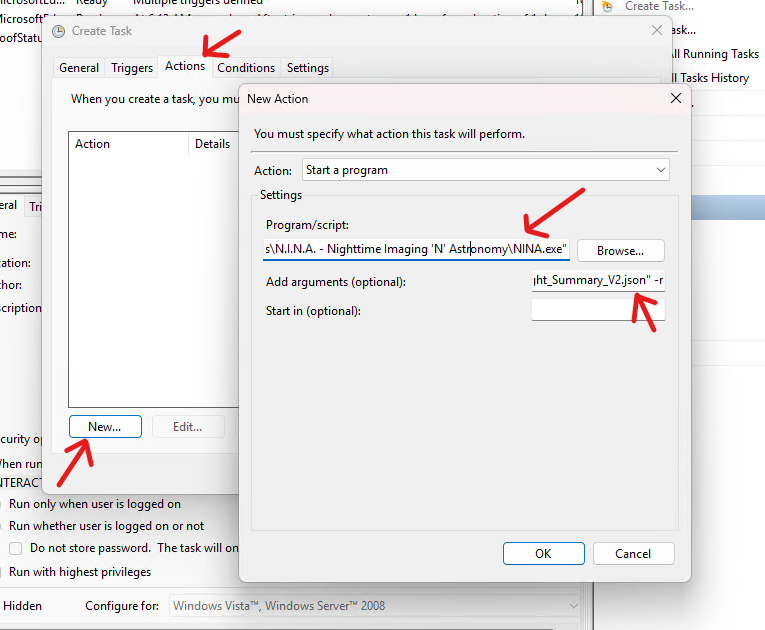
Then in the Actions tab, click New at the bottom left, keep the Action as Start a Program. Then in the Program/Script section, click Browse and find your NINA.exe which should be located in your Program Files area. Mine is located here: "C:\Program Files\N.I.N.A. - Nighttime Imaging 'N' Astronomy\NINA.exe"
Make sure the double quotes are there. In the Add Arguments (optional) section, copy/paste the string you put together earlier. Mine is: -p d7edc33d-7daf-466f-8081-ddda6981ea84 -s "C:\Users\naztronomy\Documents\N.I.N.A\Naztronomy_Auto_Target_Scheduler_w_roof_switches_night_Summary_V2.json" -r
Then click OK.
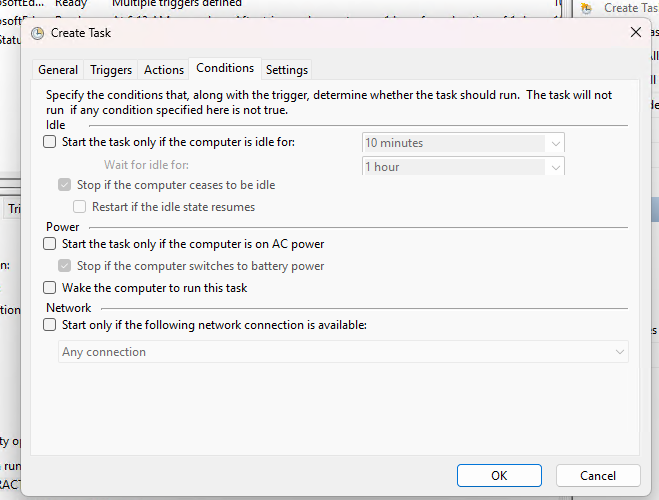
In the Conditions tab, unchck everything:
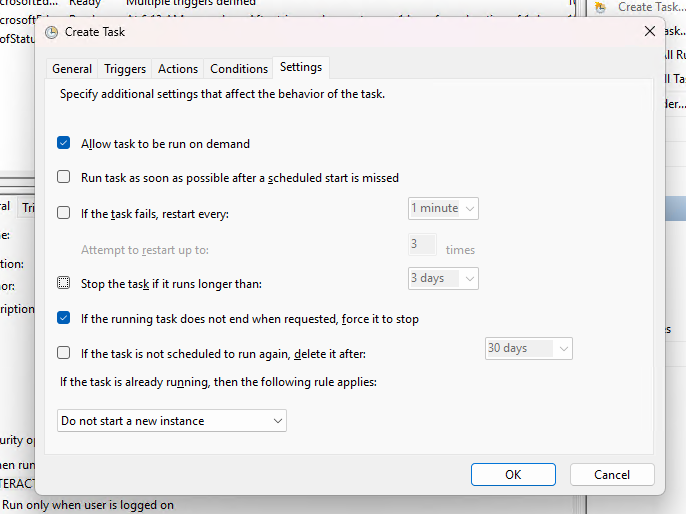
And finally, in the Settings tab, only check Allow task to be run on demand and If the running task does not end when requested, force it to stop. Make sure the bottom option stays at Do not start a new instance. And then click OK.
This new task should show up in your list and should say At system startup. To test this, you can either click Run in the right-side bar OR restart your computer and see if it runs.
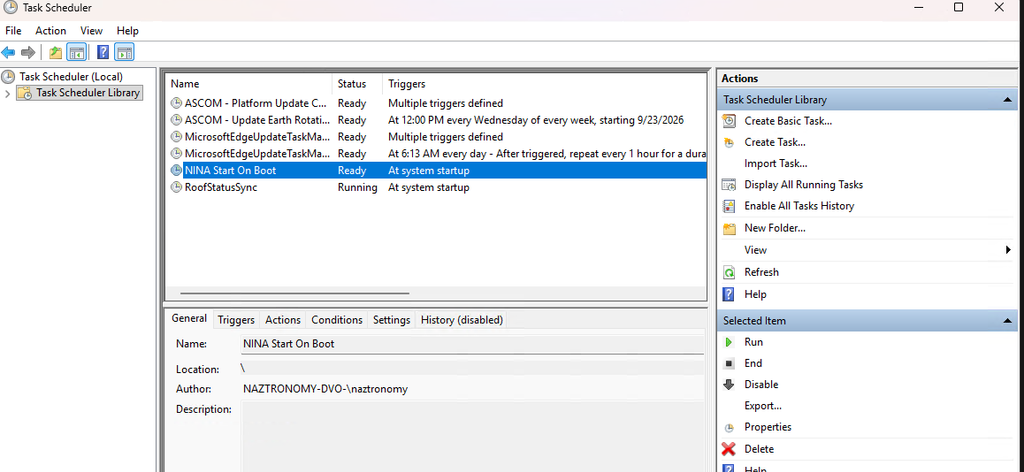
If it runs, NINA should turn on 5 minutes after your PC is booted and go straight into your sequence. I recommend making sure you run your sequence once first manually, then close NINA because then the settings will get remembered.
Questions or comments? Let me know!